

How to set up SliceWP with Easy Digital Downloads is something I had to figure out the hard way — most tutorials only cover WooCommerce. A few weeks ago I sat down to launch an affiliate campaign for one of my digital products, and I ran into exactly that problem: guides that didn’t match what I was actually seeing on screen.
So I figured I’d document exactly what I did — the plugin setup, the product listing, the landing page, and the one small manual fix that made the whole funnel actually work the way I wanted it to.
If you’re trying to set up an affiliate program for a digital product using SliceWP and EDD, this is the walkthrough I wish I’d had.
Why I Went with SliceWP + EDD
As an Affiliate marketing manager I didn’t want a bloated, code-heavy affiliate stack. My product was a digital download, not a physical one, so WooCommerce felt like overkill. Easy Digital Downloads is built specifically for exactly this — digital products, licensing, downloads — without dragging in a full ecommerce cart system I didn’t need.
SliceWP, on the other hand, is one of the few affiliate plugins that integrates cleanly with EDD without needing a developer to wire it together. That combination — EDD for the product, SliceWP for the affiliate tracking — turned out to be the right level of “no-code but still professional” for what I was building.
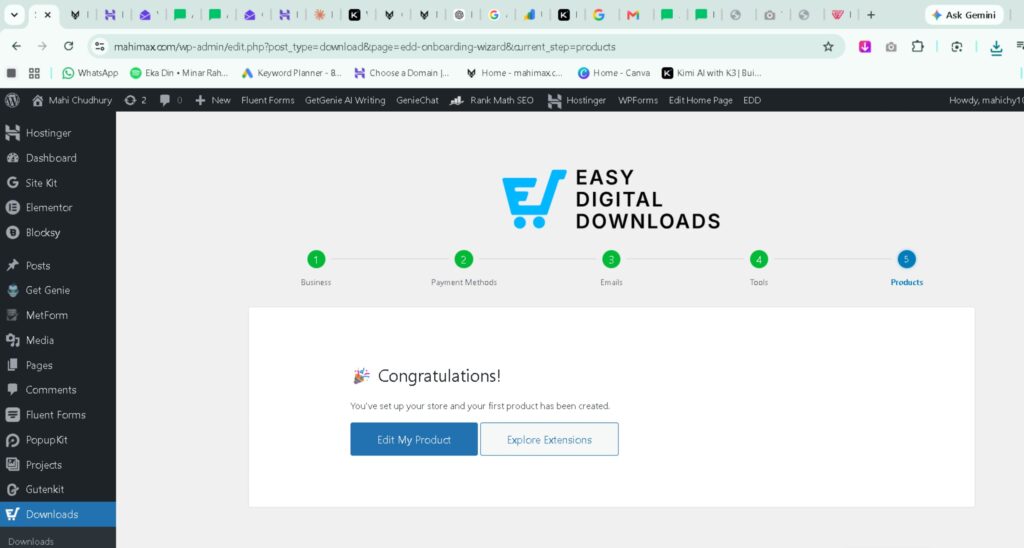
Step 1: Listing the Product in Easy Digital Downloads
Before touching SliceWP at all, the product itself had to exist properly in EDD. I went into Downloads → Add New, set the pricing, uploaded the actual digital file, and made sure the product page was clean and ready to be linked to from the outside.
This part matters more than it sounds like it should. If your EDD product isn’t fully set up first — pricing, file, publish status — SliceWP has nothing to track a commission against later. Get this right before you move on.
Step 2: Installing and Configuring SliceWP
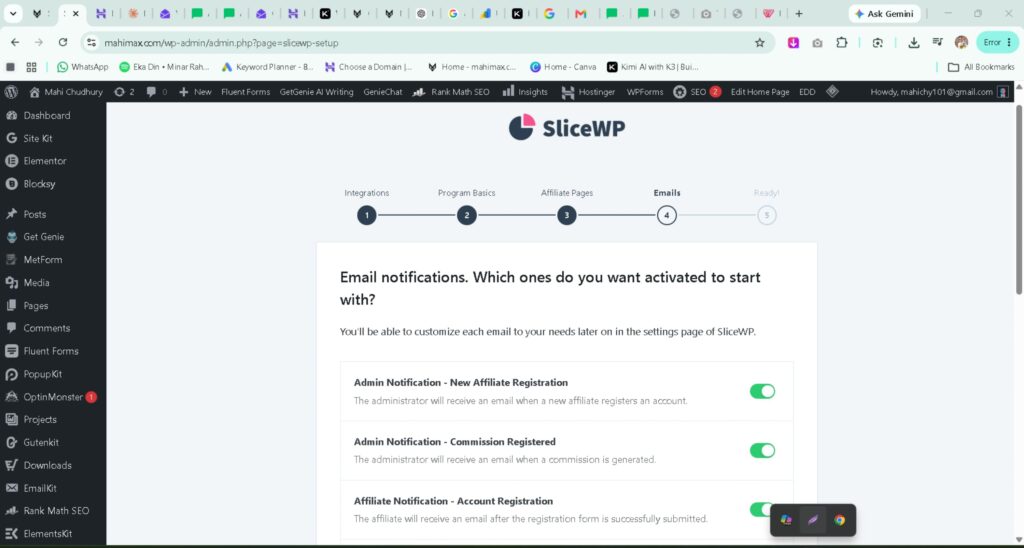
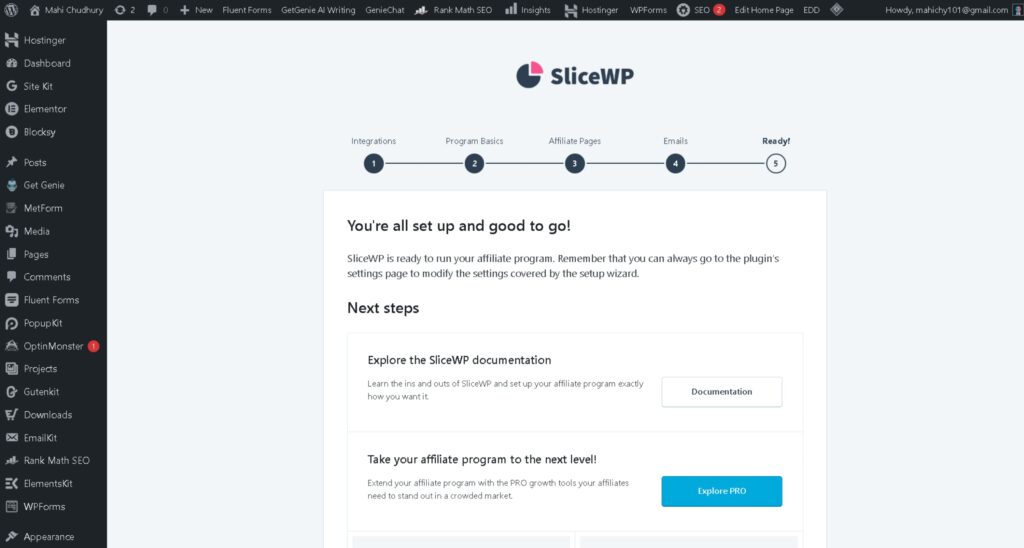
Next came the actual affiliate plugin setup. From Plugins → Add New, I searched for SliceWP, installed it, and activated it. SliceWP drops you straight into a setup wizard, which honestly made this the easiest part of the whole process.
A few things I paid close attention to during setup:
- Integration selection — I made sure to pick Easy Digital Downloads specifically as the integration, not WooCommerce (easy mistake to make if you’re following a generic guide).
- Commission rate — I set a straightforward percentage-based commission for the digital product.
- Cookie duration — this decides how long an affiliate gets credit for a referred visitor before they buy, so I set this deliberately rather than leaving it on default.
- Affiliate pages — SliceWP auto-generates a registration and dashboard page for affiliates, which saved me from building this manually.
Once the wizard was done, SliceWP was actively watching for referred visits and ready to log commissions the moment someone bought through an affiliate link.
Step 3: Building the Landing Page in just few click in claude code
The product needed a proper landing page — something built for conversion, not just a generic EDD product page. I built this one using Claude Code, which let me put together a clean, responsive layout fairly quickly without starting from a blank file.
This is where the “low-code, not no-code” part of my workflow shows up. I’m not a developer, and I don’t pretend to be one. But having a CS background means I’m comfortable enough in the code to know what I’m looking at, tweak what needs tweaking, and not be intimidated by a block of HTML when something needs adjusting.
Which brings me to the one manual fix that mattered most.

Step 4: Manually Fixing the CTA Button Link
Here’s the detail that almost every “how to set up SliceWP” guide skips over completely: your landing page’s CTA button has to point to the right place, and it won’t always do that automatically depending on how the page was built.
In my case, after generating the landing page, I went in and manually edited the CTA button’s HTML so it linked directly to the EDD sales page — not a placeholder, not the homepage, not somewhere generic. This is the link affiliates would actually be sending traffic through, so if it’s wrong, the entire tracking chain breaks before it even starts.
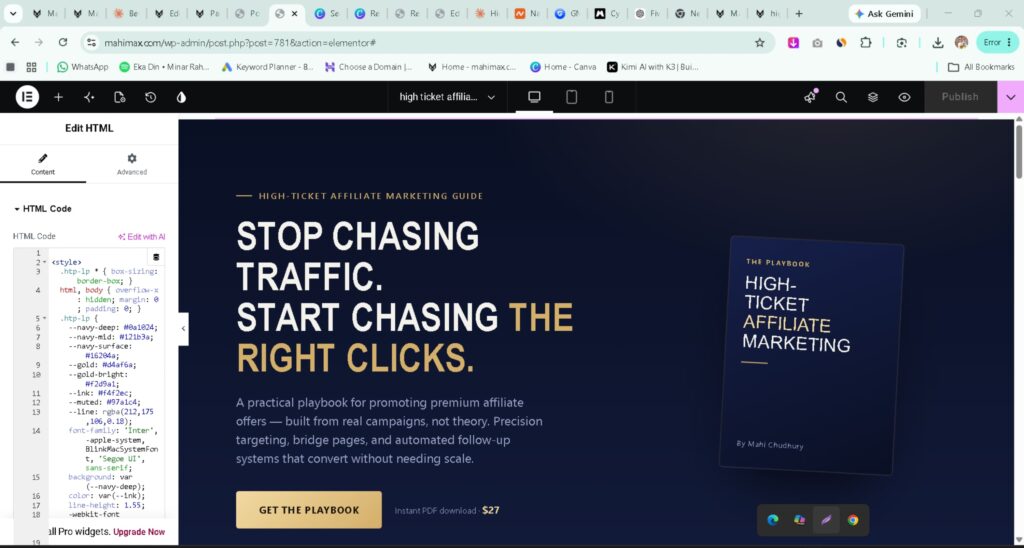
It’s a small edit. One line of HTML. But it’s the difference between a campaign that tracks properly and one that quietly leaks conversions nobody can explain later.
Step 5: Sharing the Landing Page with Affiliates
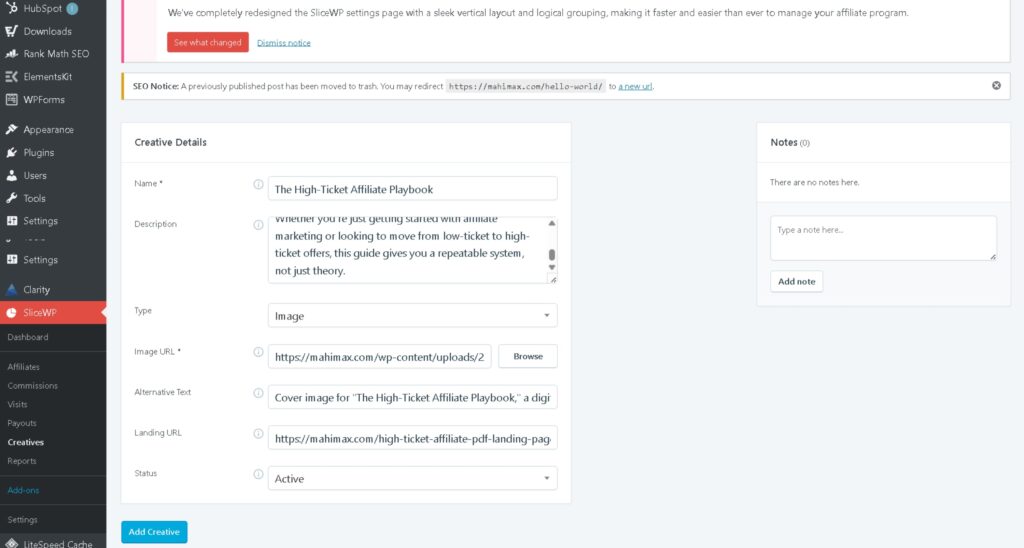
Once the CTA was pointing where it needed to, I packaged the landing page along with each affiliate’s unique tracking link (generated automatically by SliceWP) and sent it out to the affiliates I’d recruited.
From here, SliceWP took over the tracking side entirely — every visit through an affiliate’s link, every resulting sale, every commission, logged automatically in the dashboard without me needing to touch a spreadsheet.
What I’d Tell Anyone Setting This Up
If you’re trying to figure out how to set up SliceWP with Easy Digital Downloads for your own digital product, here’s the short version of what I learned — and if you take nothing else from this post, this is the checklist to bookmark:
- Get your EDD product fully built and published before you configure SliceWP
- Double-check you’re selecting EDD (not WooCommerce) during the SliceWP setup wizard
- Don’t assume your landing page’s CTA is linked correctly — check it manually
- You don’t need to be a developer to run this stack. You need to be willing to check the small details
That last point is really the whole story of this campaign. I’m not a coder. I studied computer science, but my strength has always been on the marketing and execution side, not building software from scratch. What made this campaign work wasn’t advanced development — it was knowing enough to catch the one detail (that CTA link) that a fully automated process would have missed.
If you’re a marketer without a heavy coding background trying to run your own affiliate program, that’s genuinely good news: the no-code and low-code tools have gotten good enough that you don’t need to write software. You just need to know where to look.